

You're browsing normally when your homepage suddenly changes, searches redirect to an unfamiliar engine, and pop-ups multiply out of nowhere. That's a browser hijacker at work. In 2026, the CypherLoc scareware campaign targeted approximately 2.8 million people using psychological manipulation and browser control to coerce victims into handing over personal and financial details. Understanding what a browser hijacker is, how to spot one, and how to remove it isn't just useful knowledge. It's the difference between staying in control and getting played.
Table of Contents
- Key takeaways
- What a browser hijacker actually does
- Symptoms of a browser hijacker infection
- How modern hijackers operate
- How to remove a browser hijacker
- Preventing browser hijacker infections
- My honest take on browser hijacker panic
- Protect your browser before it gets hijacked
- FAQ
Key takeaways
| Point | Details |
|---|---|
| Browser hijackers alter your settings | They change your homepage, search engine, and new tabs without your permission. |
| Bundled software is the main entry point | Most hijackers arrive hidden inside free software installs, not through direct hacks. |
| Symptoms are recognisable early | Unexpected redirects, unfamiliar extensions, and locked settings are reliable warning signs. |
| Removal requires more than one step | Uninstalling, resetting, scanning, and checking scheduled tasks are all part of a complete fix. |
| Prevention is mostly habit-based | Cautious downloading, regular extension reviews, and updated software stop most hijackers. |
What a browser hijacker actually does
A browser hijacker is software, a browser extension, or a bundled program that alters your browser's settings without your knowledge or consent. The browser hijacking definition is straightforward: any unauthorised modification to how your browser behaves, typically to serve someone else's financial interests.
Browser hijackers alter settings including your default search engine, homepage, new tab page, proxy configuration, and site permissions. They also inject advertisements into pages you visit and track your browsing behaviour to build data profiles. Many hijackers overlap with adware functions, using your clicks and searches to generate affiliate revenue or sell data to third parties.
Common changes a hijacker makes include:
- Replacing your default search engine with an unfamiliar one
- Changing your homepage and new tab to a site you didn't choose
- Redirecting searches through intermediary sites before reaching results
- Installing browser extensions or toolbars you never requested
- Injecting banner ads, pop-ups, or sponsored results into every page
What separates hijackers from traditional viruses is intent and method. A virus replicates and damages systems. A hijacker sits quietly in your browser, monetising your attention. Most hijackers come bundled with free software or appear as deceptive downloads, installed unknowingly when users fail to uncheck hidden third-party offers during setup. That's the mechanism. You install a free PDF converter, forget to read the installer carefully, and a search toolbar tags along for the ride.
Modern hijackers have also adopted evasion tactics borrowed from more sophisticated malware. Some use encrypted loaders and hash-gated execution to avoid triggering security tools, making them harder to detect with traditional antivirus software.
Pro Tip: Always choose "Custom" or "Advanced" install options when setting up free software. That's where bundled extras are hidden, and it's the only place you can uncheck them before they land on your system.
Symptoms of a browser hijacker infection
Recognising a browser hijacker early limits the damage. The symptoms of browser hijacker infection are consistent enough that most users can self-diagnose before things escalate.

Common symptoms include unauthorised changes to your default search engine or homepage, unfamiliar extensions appearing in your browser, unexpected redirects during normal browsing, and a sharp increase in intrusive ads. Other signs include settings that appear greyed out or locked, and browser shortcuts that have had additional parameters added to their target path.
Here's what to look for specifically:
- Your homepage or new tab opens to a site you didn't set
- Searches go through an engine you don't recognise before reaching results
- Extensions or toolbars appear that you never installed
- Your browser displays a message saying settings are "managed by your organisation" when you're on a personal device
- Pop-ups and banner ads appear on sites that don't normally show them
- Your browser runs noticeably slower or crashes more often
- Clicking links redirects you to unrelated or suspicious sites
That "managed by your organisation" message is worth calling out specifically. It means a policy has been pushed to your browser at the system level, often by a hijacker that has installed itself with elevated permissions. You can't simply click a setting to undo it. That requires a deeper clean.
Performance slowdowns are also a reliable indicator. When a hijacker is running background processes, phoning home to a server, or injecting scripts into every page you load, your browser pays for it in speed and stability.
How modern hijackers operate
Understanding the mechanics behind browser hijackers helps you respond to them without panic. The evolution of browser hijackers includes a clear shift toward browser-resident attack frameworks that rely on psychological manipulation over pure technical exploitation.
The CypherLoc campaign is the clearest recent example of how far this has come. Rather than silently stealing data in the background, it tricks users into calling fake Microsoft tech support by displaying the victim's IP address, showing fake login forms, and playing alarm sounds to induce fear. The browser appears locked. The user panics. They call the number on screen and hand over financial details to a criminal.
| Tactic | How it works | Goal |
|---|---|---|
| Browser locking | Fills the screen and disables normal navigation | Prevent the user from escaping |
| Alarm sounds | Plays loud alerts to create urgency | Trigger panic and override rational thinking |
| IP address display | Shows your real IP to suggest deep system access | Make the threat feel credible and personal |
| Fake support numbers | Displays a phone number styled as Microsoft or Apple | Direct the victim to a human scammer |
| Fake login forms | Mimics real login pages to harvest credentials | Steal usernames and passwords directly |
"The psychological trick is designed to extract personal and financial information by making the threat feel immediate, official, and inescapable." — Barracuda Threat Intelligence
Beyond scareware, more technically advanced hijackers use encrypted resource sections to hide command-and-control server addresses, bypassing signature-based antivirus tools entirely. Security teams increasingly rely on behavioural monitoring because the code itself looks clean until it executes. Social engineering and phishing emails also serve as delivery mechanisms, directing users to sites that silently install hijacker components through deceptive download prompts. Understanding these social engineering techniques is genuinely useful for anyone who wants to recognise manipulation before it works.
How to remove a browser hijacker
Fixing browser hijacking is a methodical process. Rushing it or skipping steps is how hijackers survive a cleanup and reinstall themselves.
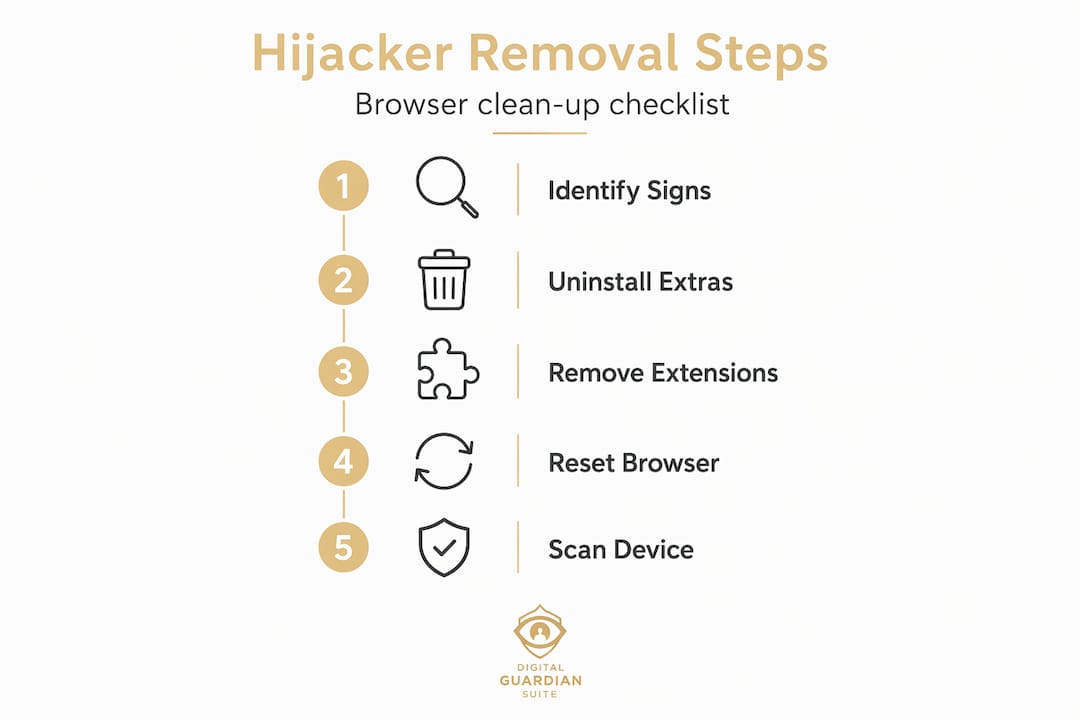
- Uninstall suspicious programs. Open your system's application list and remove anything unfamiliar, especially software installed around the time symptoms appeared. Sort by install date to find recent additions quickly.
- Remove unknown browser extensions. Go into your browser's extension manager and delete anything you don't recognise or didn't deliberately install. Do this for every browser on the device.
- Reset browser settings to default. Most browsers have a built-in reset option that restores the homepage, search engine, and new tab settings. Use it. This also disables any extensions that survived manual removal.
- Clear cache and cookies. Hijackers can store persistent data in cached files. A full cache and cookie clear removes this foothold.
- Run a full scan with reputable anti-malware software. A dedicated malware scanner will catch components that manual removal misses, including background processes and registry entries.
- Check for malicious scheduled tasks. Hijackers persist after uninstall by using system-level scheduled tasks or enforced browser policies. Open your task scheduler and remove any tasks pointing to unfamiliar executables.
- Inspect and fix browser shortcuts. Right-click your browser shortcut, check the "Target" field, and remove any added URLs or parameters that weren't there originally.
For scareware attacks like CypherLoc, the approach is different. Force-quitting the browser via Task Manager on Windows or Activity Monitor on macOS is the correct first move. When you reopen the browser, decline any prompt to restore your previous session. Restoring the session reloads the malicious page and the lock screen with it.
Pro Tip: After completing a full cleanup, verify the removal by checking your browser's policy settings. In Chrome, type "chrome://policy` in the address bar. If you see active policies you didn't set, a system-level hijacker component is still present and needs to be removed from your OS settings.
Effective removal also means checking every browser installed on the device, not just the one you use most. Hijackers often target multiple browsers simultaneously.
Preventing browser hijacker infections
Browser hijacker prevention is mostly about habits, and most of those habits are simple once they become automatic.
- Read every installer screen carefully. Bundled software hides in custom install steps. Uncheck anything that isn't the program you actually want.
- Download software from official sources only. The developer's own website or a reputable platform is far safer than a third-party download site offering the same tool for free.
- Keep your browser and security software updated. Updates patch the vulnerabilities that hijackers exploit. Delaying them extends your exposure window.
- Review your installed extensions regularly. Once a month, open your extension manager and verify every item on the list. Remove anything you don't actively use or recognise.
- Use your browser's built-in safety features. Modern browsers include safe browsing tools and scareware blockers. Make sure they're enabled in your settings.
- Be sceptical of email links and attachments. Phishing emails are a common delivery method for hijacker components. If an email asks you to download something or click through to a login page, verify the sender before acting.
- Treat urgency as a red flag. Legitimate software and security alerts don't play alarm sounds or lock your screen. If something feels designed to panic you, it probably is.
My honest take on browser hijacker panic
I've watched a lot of people respond to browser hijackers the wrong way, and the pattern is consistent. They see a locked screen, hear an alarm, and immediately assume their computer is destroyed or their bank account is being drained. That panic is exactly what the attacker is counting on.
What I've learned from watching these campaigns closely is that most hijackers aren't viruses. They're unwanted software that exploits your browser, not your operating system. That distinction matters enormously for how you respond. A calm force-quit and a methodical cleanup beats a frantic call to a fake support line every single time.
The hardest thing to convince people of is that the threat is usually less catastrophic than it appears, but the response needs to be more thorough than they expect. You can't just delete one extension and call it done. You need to check scheduled tasks, shortcuts, and browser policies. That's where most cleanups fall short.
My advice: build the habit of reviewing your extensions monthly and reading installers carefully. Those two things alone will stop the vast majority of hijackers before they ever get started.
— Darcy
Protect your browser before it gets hijacked
Browser hijackers are persistent, psychologically sophisticated, and increasingly hard to spot before they've already changed your settings. Digital-guardian was built for exactly this kind of threat. The Digital Guardian Suite runs quietly in the background, monitoring for the behavioural patterns that signal a hijacker at work, including unauthorised setting changes, suspicious extension activity, and policy-level browser modifications. You don't need to become a security expert to stay protected. Digital-guardian handles the monitoring so you can focus on actually using your devices. For families and individuals who want genuine peace of mind without constant manual checks, it's the kind of protection that works without asking you to think about it.
FAQ
What is a browser hijacker?
A browser hijacker is software or a browser extension that alters your browser settings without your consent, typically changing your homepage, search engine, or new tab page to generate advertising revenue or collect data.
How do I know if my browser is hijacked?
Key signs include an unfamiliar homepage or search engine, extensions you didn't install, unexpected redirects, increased pop-up ads, and a "managed by your organisation" message on a personal device.
How do I remove a browser hijacker?
Uninstall suspicious programs, remove unfamiliar extensions, reset your browser settings, clear cache and cookies, run an anti-malware scan, and check for malicious scheduled tasks or modified browser shortcuts.
Can a browser hijacker steal my passwords?
Some advanced hijackers and associated scareware campaigns are designed to harvest credentials through fake login forms or by directing victims to call fraudulent support lines that extract personal and financial information.
How do browser hijackers get installed?
Most arrive bundled with free software during installation when users don't uncheck hidden third-party offers. Others come through deceptive downloads, phishing emails, or malicious browser extension stores.