
Every year, millions of Australian children return to school carrying more technology than the year before. New devices, new apps, and new online spaces mean new risks. A practical back to school digital safety checklist is the fastest way to get ahead of those risks before the first bell rings. This article walks you through ten concrete steps, covering everything from router settings to social media habits, so you can protect your kids without turning your home into a surveillance state.
Table of Contents
- Key takeaways
- 1. Set clear family rules before the year starts
- 2. Use router-based DNS filtering as your first line of defence
- 3. Configure parental controls on the platforms your kids actually use
- 4. Set up Google Family Link or Apple Screen Time
- 5. Protect your child's privacy in back-to-school photos
- 6. Have an honest conversation about online risks
- 7. Know the warning signs of cyberbullying
- 8. Partner with your child's school
- 9. Teach your child about their digital footprint
- 10. Build a monthly digital safety routine
- My honest take on digital safety for parents
- Protect your family with Digital-guardian
- FAQ
Key takeaways
| Point | Details |
|---|---|
| Start before school begins | A basic digital safety setup takes as little as 15 minutes and sets the tone for the whole year. |
| Layer your defences | Combine router filtering, platform controls, and family rules for stronger protection than any single tool. |
| Privacy starts with photos | Blur school logos and uniforms before posting, and never check in at school locations on social media. |
| Conversation beats monitoring | Open, ongoing dialogue is more effective than technical controls alone, which children can often work around. |
| Build a monthly routine | Schedule regular digital check-ins to update settings, review apps, and talk about online experiences. |
1. Set clear family rules before the year starts
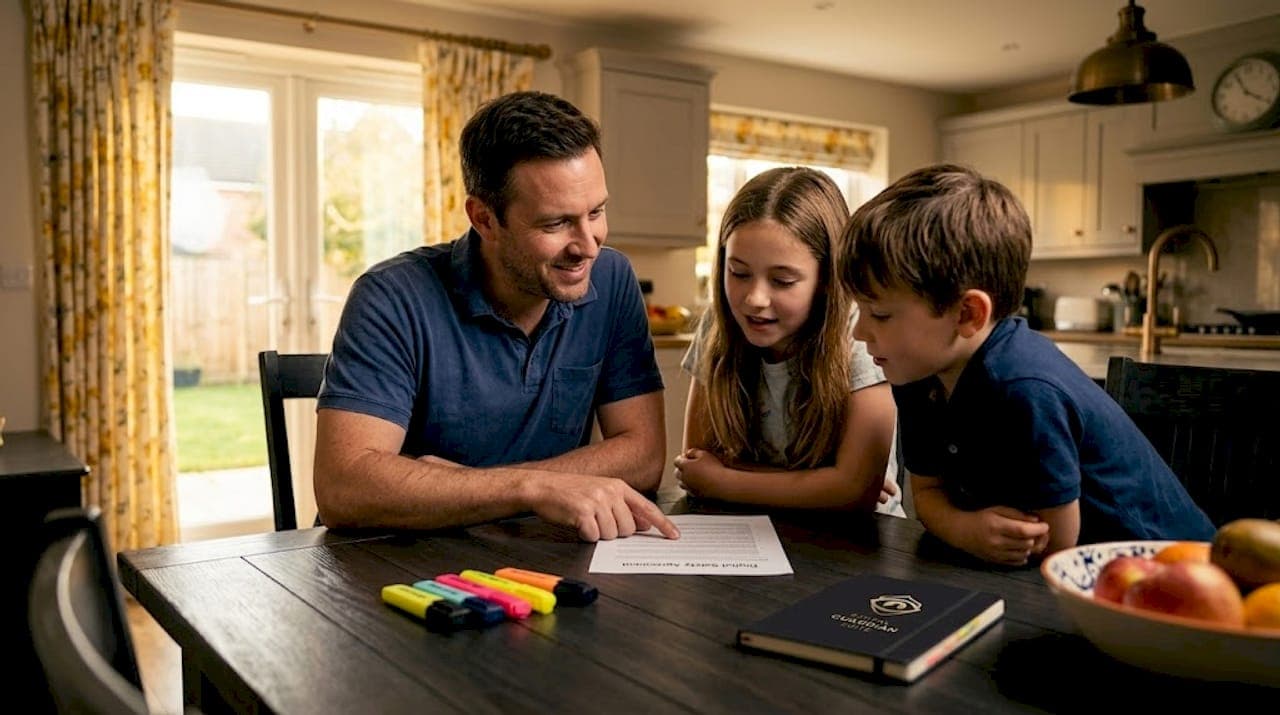
The start of school is a natural reset point. Use it. Sit down with your children before the first day and agree on rules around device use, screen time, and what is and is not acceptable online. Written agreements work better than verbal ones because they remove ambiguity later.
Rules worth establishing from day one include:
- No devices at the dinner table or in bedrooms after a set time
- All new apps require parental approval before downloading
- Personal information (full name, school, suburb) is never shared with strangers online
- Any uncomfortable or upsetting online experience gets reported to a parent without fear of punishment
- Social media accounts are set to private, not public
Pro Tip: Frame the rules as a family agreement, not a punishment list. Children who feel like they helped create the rules are far more likely to follow them.
The goal is not to restrict technology but to give your child a clear framework for using it safely.
2. Use router-based DNS filtering as your first line of defence
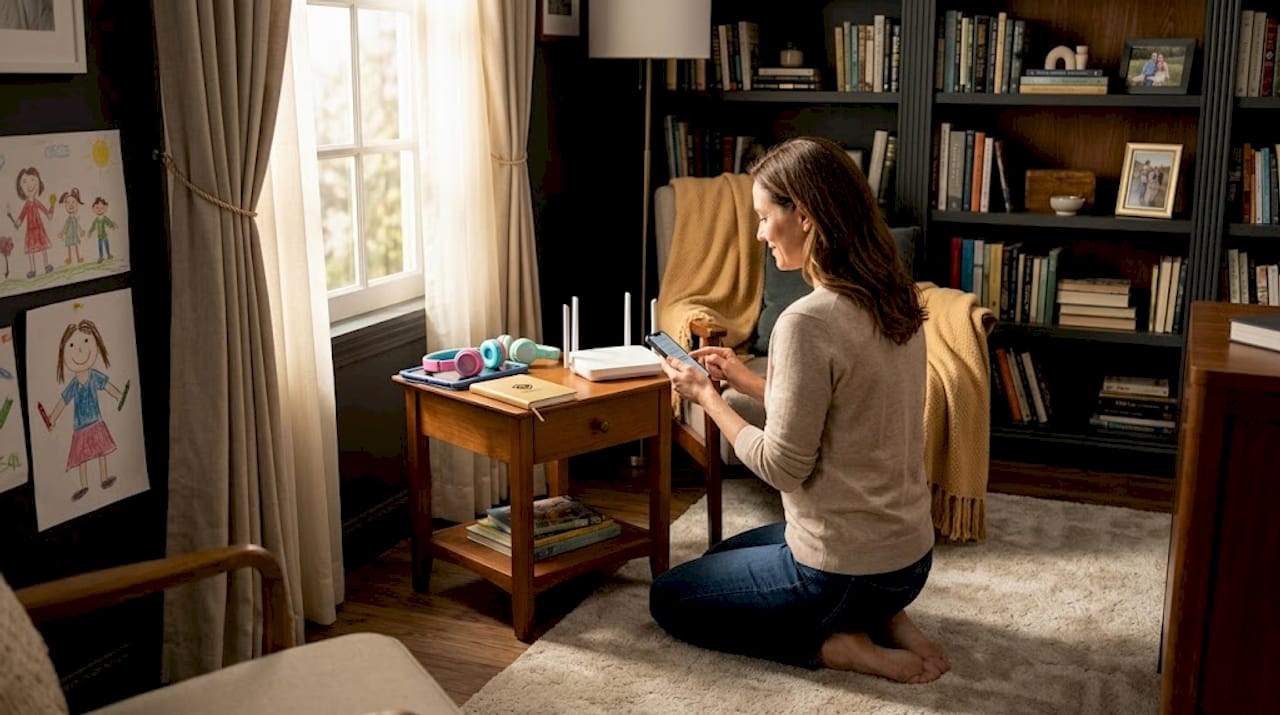
Most parents focus on device-level controls and overlook the router. This is a mistake. A layered home safety approach starts at the router, because every device on your network, including smart TVs and gaming consoles, benefits from filtering at that level.
Cloudflare's 1.1.1.3 family filter is free, fast, and blocks malware and adult content across your entire home network without slowing your connection. You change the DNS settings in your router's admin panel, which typically takes under ten minutes. Your internet provider's support page will show you how to access those settings for your specific model.
This single step protects devices you might not even think to add parental controls to, like your child's school-issued tablet or a hand-me-down laptop.
3. Configure parental controls on the platforms your kids actually use
Router filtering is the foundation, but platform-level controls add a second layer of protection. The platforms worth configuring depend on your child's age, but Roblox, YouTube, and TikTok are the most common starting points for primary and early secondary school students.
On Roblox, restrict chat to friends only, disable direct messaging, and turn off the ability to follow links to external sites. On YouTube, switch to YouTube Kids for younger children or enable Restricted Mode for older ones. On TikTok, use Family Pairing to link your account to your child's, which lets you control screen time, filter content, and manage who can send messages.
Pro Tip: Check these settings every school term. Platforms update their interfaces regularly, and controls you set six months ago may have shifted or been replaced with new options.
4. Set up Google Family Link or Apple Screen Time
For Android devices, Google Family Link gives you visibility over which apps your child downloads, how much time they spend on each app, and where their device is located. You approve or reject every app install request directly from your own phone.
For iPhones and iPads, Apple Screen Time lets you set daily limits per app category, schedule downtime (such as no apps after 9pm), and restrict content by age rating. Both tools also let you lock the device remotely if needed.
The key is to set these up before handing the device to your child. Retrofitting controls after a child has been using a device freely creates conflict. Starting fresh at the beginning of the school year avoids that friction entirely.
5. Protect your child's privacy in back-to-school photos
This one surprises many parents. Sharing a first-day-of-school photo feels harmless, but the details in that photo can reveal more than you intend. School uniforms, badges, and visible signage identify the school. Geotags identify the location. Captions sometimes include the child's full name and year level.
The Australian Centre to Counter Child Exploitation recommends avoiding location check-ins at school and blurring identifying details before posting. Critically, social media filters may store the original unedited image on the platform's servers, so use your phone's built-in editing tools to blur or crop before you upload.
"Starting the school year fresh with digital safety plans can help parents feel more in control and children more secure." — AFP Commander Helen Schneider
Other privacy habits worth adopting:
- Set social media accounts to private before posting school-related content
- Avoid including your child's full name in public captions
- Discuss with your child who can see their posts and why that matters
- Encourage them to think before they post, because online behaviour is permanent
6. Have an honest conversation about online risks
Technology cannot replace this step. Open, ongoing conversations are the most effective safety layer, because technical controls can be worked around by a determined child. What cannot be worked around is a child who genuinely understands why certain behaviours are risky.
Talk about what personal information looks like and why strangers do not need it. Explain that people online are not always who they claim to be. Discuss what grooming behaviour looks like in age-appropriate terms. Yale cybersecurity experts recommend starting these discussions early and continuing them through adolescence, because the threats evolve as children grow.
Keep these conversations short, regular, and two-way. Ask your child what they have seen online lately. Listen without immediately jumping to solutions. The goal is for them to come to you when something feels wrong.
7. Know the warning signs of cyberbullying
Cyberbullying does not always look obvious. Children rarely come home and announce they are being bullied online. Instead, watch for behavioural changes: becoming withdrawn after using devices, reluctance to go to school, unexplained anger or distress, or suddenly stopping use of a platform they previously loved.
Here is a quick reference for what to look for and how to respond:
| Warning sign | What it might indicate | Suggested response |
|---|---|---|
| Avoids devices suddenly | Negative online experience or bullying | Open a calm, non-judgmental conversation |
| Upset after using phone | Harassment or hurtful messages | Ask to see the content together |
| Refuses to discuss online activity | Fear of losing device access | Reassure them they will not be punished |
| Changes in friend group | Social exclusion playing out online | Contact school if pattern continues |
Monitoring tools like Bark and Securly use AI to scan for signs of distress in messages and social media activity. They are not foolproof, and human review is still needed, but they can flag issues a parent might otherwise miss. The key is using them as a support tool, not a replacement for direct communication.
8. Partner with your child's school
Schools have their own digital safety policies, and most are happy to share them with parents. Ask your child's school what platforms they use for learning, what monitoring is in place on school devices, and how they handle cyberbullying incidents.
Aligning your home rules with the school's approach reduces confusion for your child. It also means you are not working against each other. If the school blocks certain websites on its network but your child can access them freely at home, the message becomes inconsistent.
Many schools now offer parent information nights on digital safety. Attending one is worth an hour of your time.
9. Teach your child about their digital footprint
Most children do not realise that what they post online does not disappear. Screenshots, shares, and cached pages mean content can outlast the platform it was posted on. A careless comment at age twelve can surface years later.
Digital footprint awareness is one of the most underrated student digital safety guidelines a parent can teach. Walk your child through a simple exercise: search their name together and see what comes up. Discuss what a future employer, teacher, or university admissions officer might think if they saw that content.
This is not about fear. It is about helping your child understand that their online identity is real and worth protecting.
10. Build a monthly digital safety routine
A once-a-year setup is not enough. Technology changes, children mature, and new apps appear constantly. Monthly digital check-ins help you stay current without making digital safety feel like a burden.
A simple monthly routine might look like this:
- Review which apps are installed on your child's devices and remove anything unfamiliar
- Check that parental controls and screen time limits are still active and correctly configured
- Ask your child about their online experiences over the past month, keeping the tone conversational
- Update passwords on key accounts if they have not been changed recently
- Check privacy settings on social media accounts, as platforms often reset these after updates
Set a calendar reminder now. Fifteen minutes once a month is a reasonable investment for a year of safer internet use for your kids.
My honest take on digital safety for parents
I've spent a lot of time looking at how families approach online safety, and the pattern I keep seeing is this: parents invest heavily in tools and almost nothing in conversation. They install every app, configure every filter, and then feel blindsided when their child encounters something harmful anyway.
The uncomfortable truth is that technical solutions work best when they are simple and matched to your family's actual needs. Overly complex dashboards and school-grade monitoring tools often end up ignored because they are too hard to maintain. A basic DNS filter and a five-minute weekly chat will outperform an elaborate monitoring setup that nobody uses consistently.
What I've found actually works is treating digital safety the same way you treat road safety. You teach your child to look both ways, you put them in a seatbelt, and you keep having the conversation as they get older and take on more independence. You do not expect the seatbelt to do all the work.
The parents who get this right are not the most technically savvy. They are the ones who stay curious, keep talking, and adjust as their child grows. That is the real back to school cybersecurity strategy. No app required.
— Darcy
Protect your family with Digital-guardian
Setting up a back to school digital safety checklist is a great start, but maintaining it across devices, platforms, and a busy family schedule is where most parents lose momentum. Digital-guardian was built for exactly this. The Digital Guardian Suite runs quietly in the background of your family's digital life, monitoring for threats, managing device safety, and giving you clear visibility without constant manual effort. It brings together family safety, privacy protection, and device management into one place, so you spend less time configuring tools and more time with your kids. Set it up once, and let it work.
FAQ
How long does a basic digital safety setup take?
A foundational digital safety setup can be completed in as little as 15 minutes, covering core rules, basic parental controls, and privacy settings before school starts.
What is the most effective way to protect kids online?
Open, ongoing conversations are the most effective layer of protection. Technical controls support safe internet use for kids, but children who understand online risks are far better equipped to handle them.
Should I monitor my child's social media accounts?
Monitoring is most effective when paired with trust. Tools like Bark can flag concerning content, but they work best alongside regular, non-judgmental conversations rather than as a standalone solution.
How often should I update parental controls?
Review parental controls at least once a month. Platforms update their interfaces regularly, and settings can reset after app updates, so monthly checks keep your online safety checklist for school current.
At what age should I start talking to my child about online safety?
Start as early as your child begins using any connected device. Yale cybersecurity experts recommend beginning safety discussions at a young age and continuing them through adolescence, adapting the conversation as threats and technology evolve.